Office hours recap: one video, a full week of content
What we covered on the October 21 call: turning one video into clips, carousels and posts, teaching Echo your voice, the teleprompter, and two carousel fixes.
What we covered on the October 21 call: turning one video into clips, carousels and posts, teaching Echo your voice, the teleprompter, and two carousel fixes.
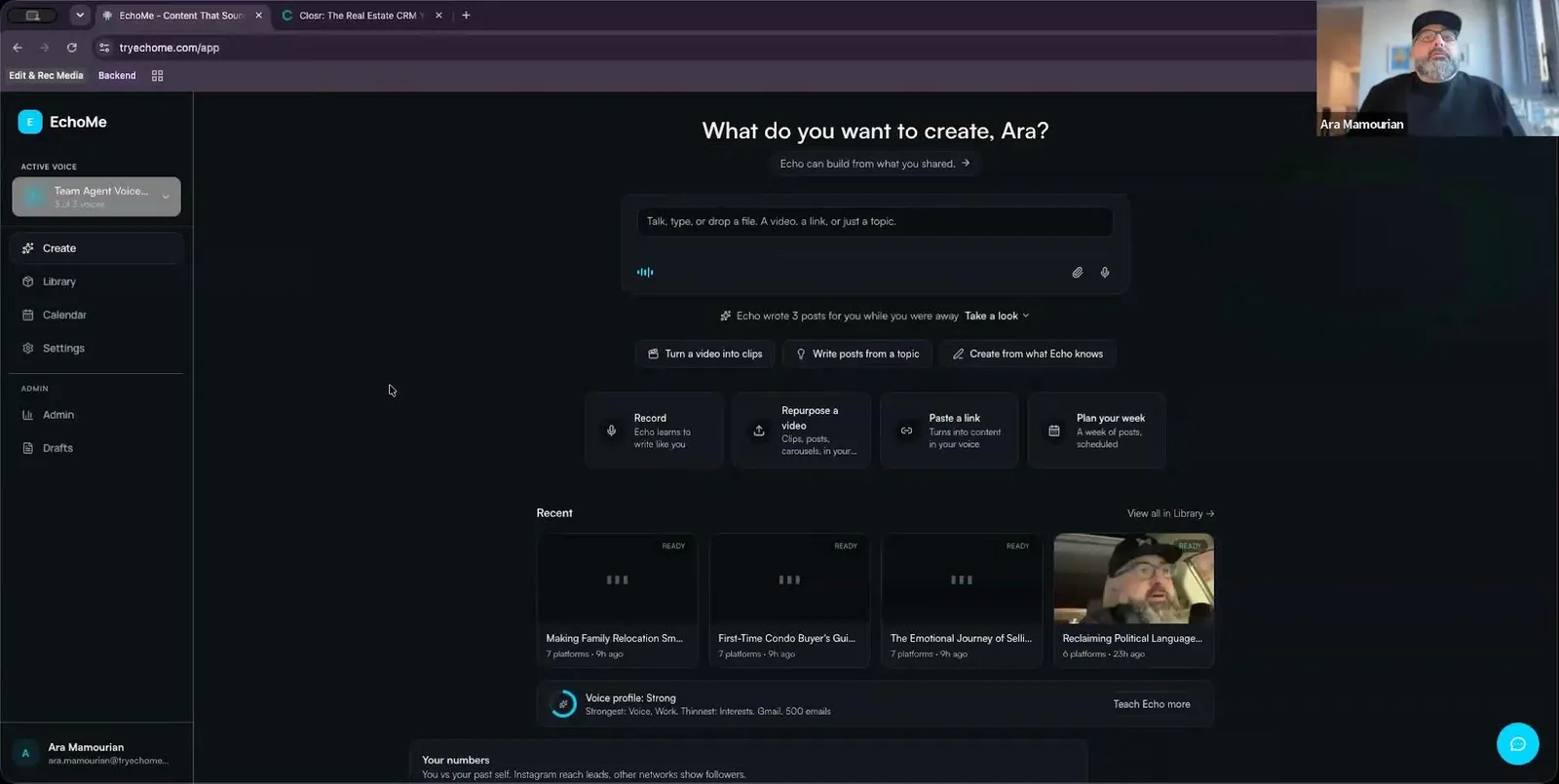
Every week we run live office hours for EchoMe and Closr users. You bring questions, we show what is new, and we fix what is broken. Here is what we covered on October 21.
The Create screen is where everything starts. Drop in a video, or paste a YouTube, Zoom or Loom link, and EchoMe turns it into a full set of content. You don't need polished production to get something worth posting.
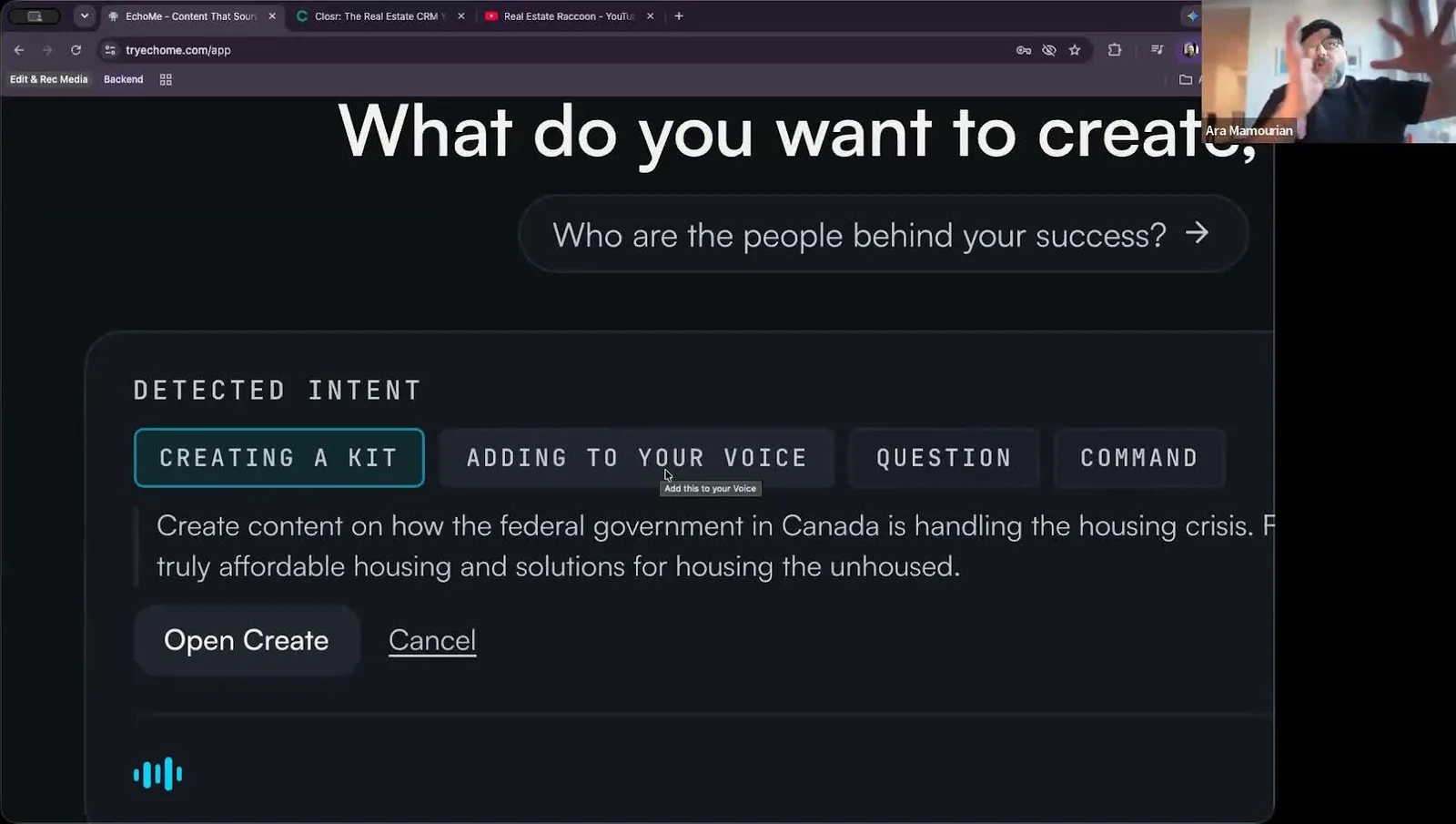
That same box understands what you mean. Type or say something and Echo works out whether you are creating a kit, adding to your voice, asking a question or giving it a command, and shows you before it acts.
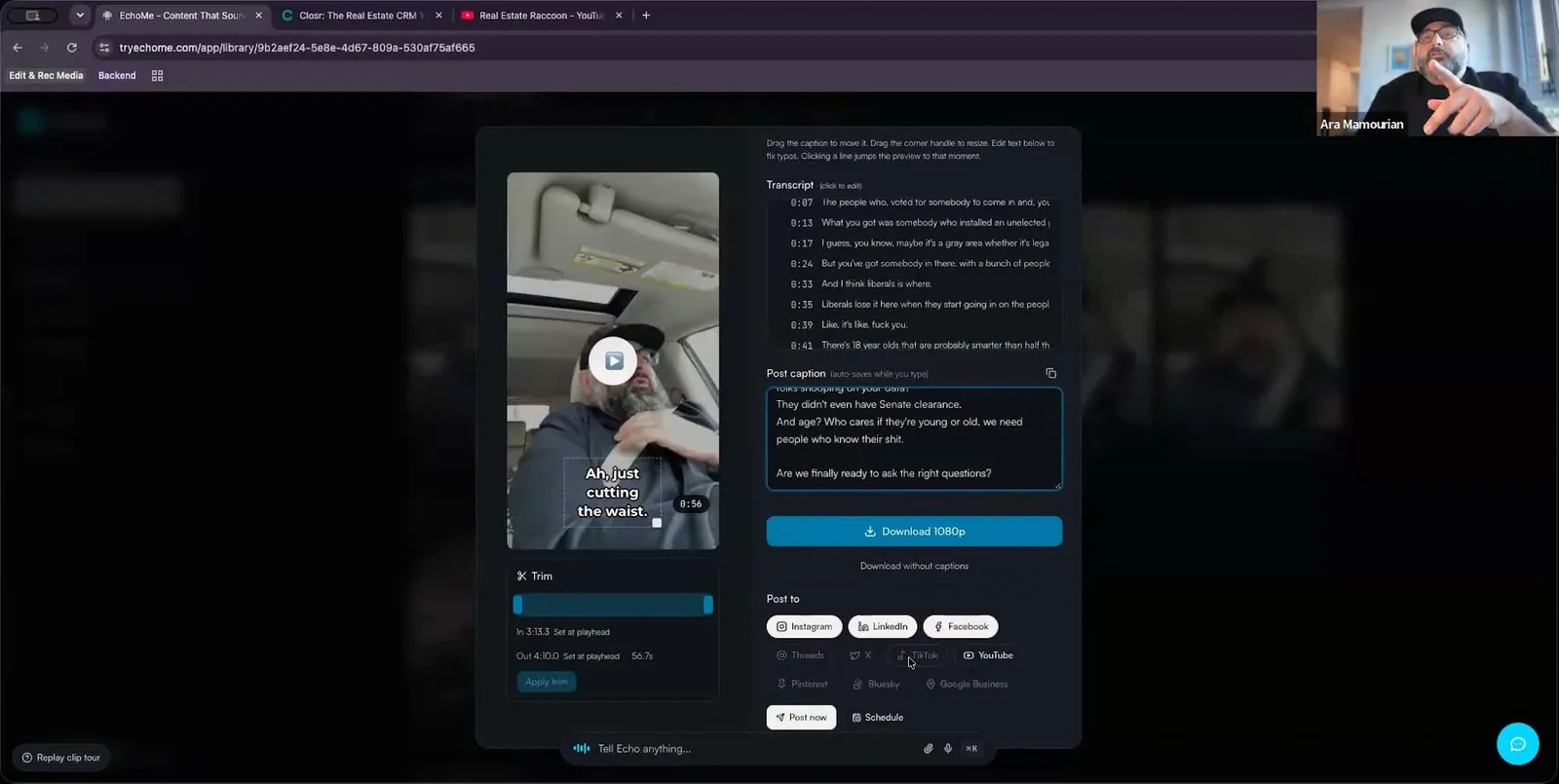
Paste a video link and submit it. EchoMe scans the whole thing for the strongest moments and gives you short clips, captions, downloads, and post-ready versions for the platforms you've connected. Every clip is editable, so you can trim it before it goes anywhere.
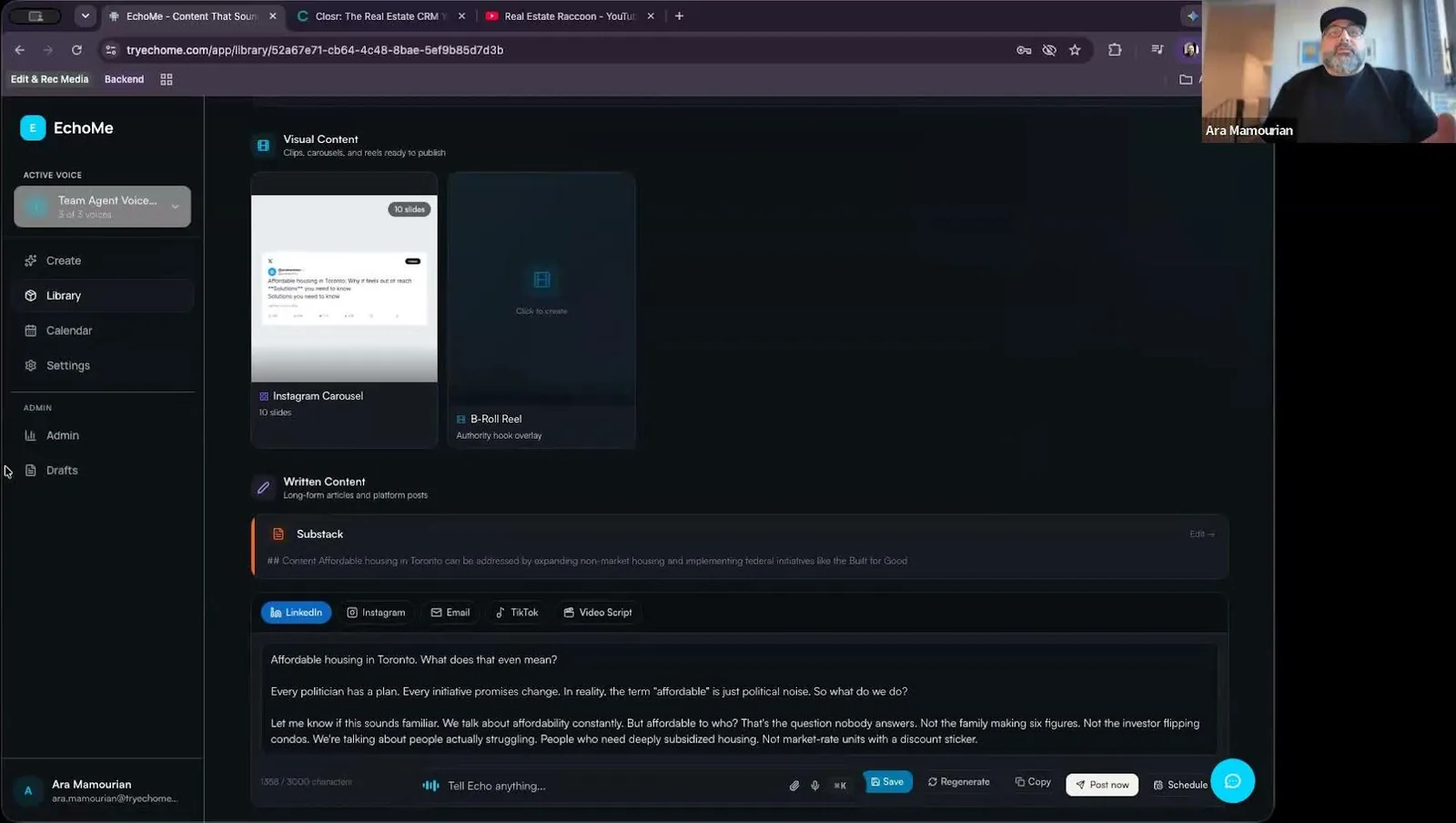
From the same video you also get carousel slides, a blog post draft, LinkedIn and X posts, and platform-specific captions. EchoMe can post or schedule directly to Instagram, Facebook, LinkedIn, YouTube, TikTok and more. The blog draft is written to paste straight into Substack, and if you use a Closr website, it can populate your site's blog too.
This is exactly what Giovanna did this week, and it got her almost 3,000 views overnight. Read why it worked.
You don't have to begin with a video. Give EchoMe a topic and it will build a content kit, a blog draft, carousel content and a video script. It works best when you include your own take, not just a subject. “Affordable housing” gets you something generic. What you actually think about it gets you something that sounds like you.
If EchoMe writes you a script, open it in the built-in teleprompter and record right there. Then send that recording back into EchoMe to cut clips from it. Script, record and clip, all in one place.
EchoMe starts with a public search to build a first picture of how you sound. You can make it much stronger by adding your website or blog, your YouTube channel, your Instagram, past videos and other public content. It can also learn from your sent email: export it with Google Takeout and upload it.
Once that material is in, EchoMe looks for content opportunities in it every day, up to three at a time. They don't pile up if you skip them, and you get an email for each one.
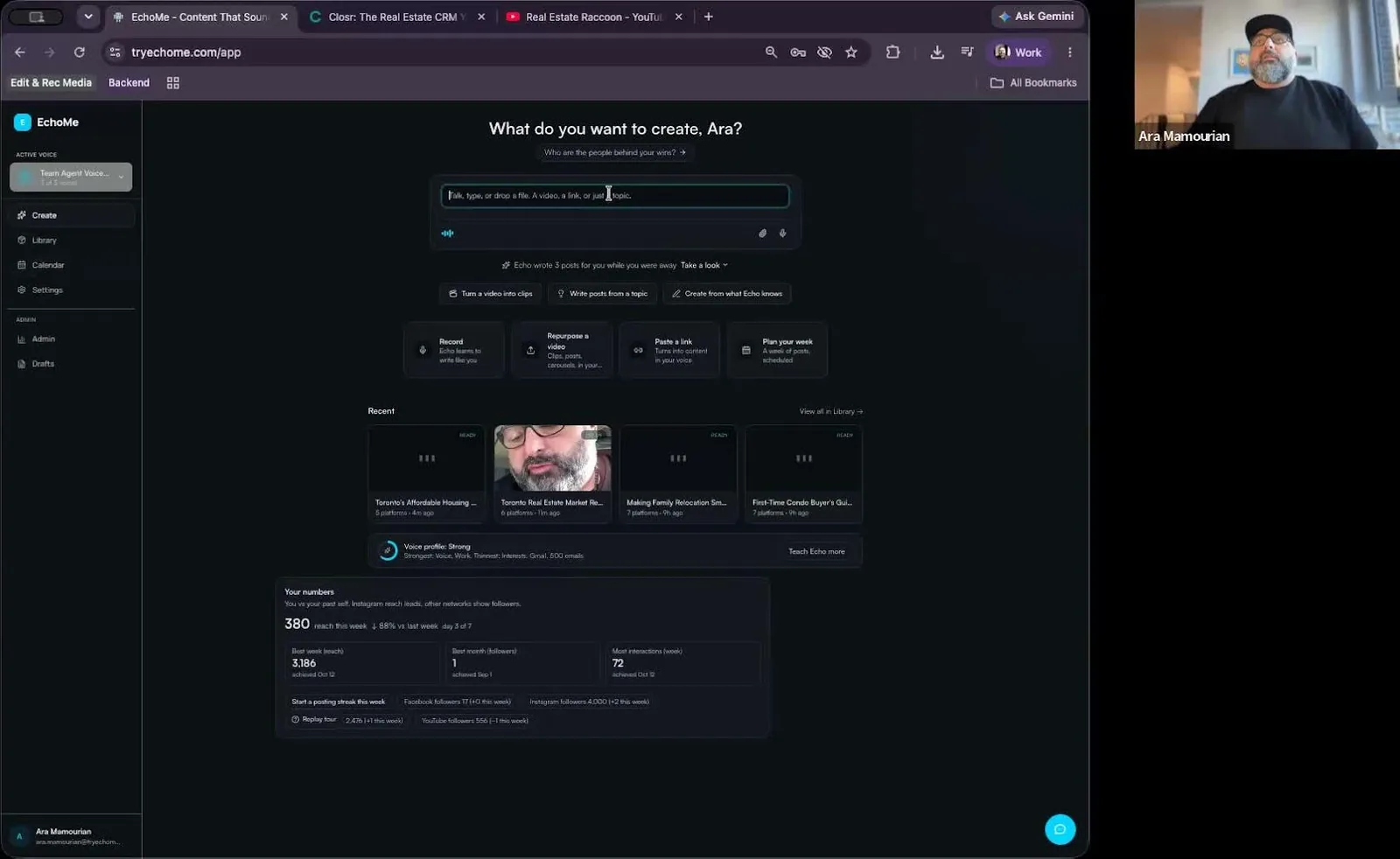
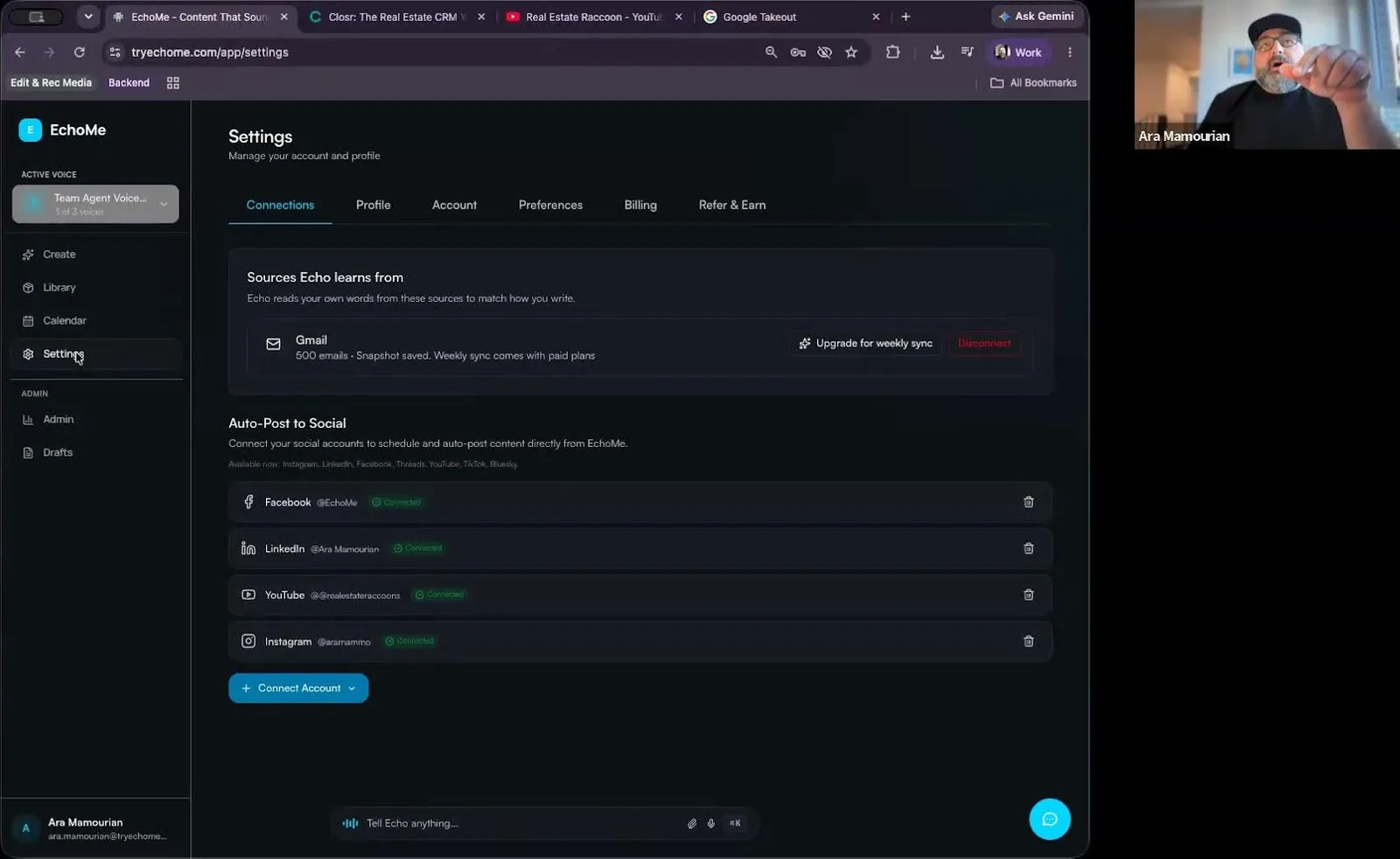
A lot of questions this week came back to setup. Make sure onboarding and settings are complete: your website, your area, a profile photo, and your connected social accounts. Two of these matter more than they look. Your profile photo is used in carousels, and connected accounts are what make posting from EchoMe work.
Changing photos on every slide. A user reported they could only swap the image on some slides. That is fixed: you can now change the photo on any slide.
Edits reverting on download. Another user reported that after editing a carousel, the download came out looking like the original. On the call I guessed it was a short hosting outage we had that day. It wasn't. We looked into it right after, and it was a bug: Download was rebuilding the carousel from scratch instead of using your edited version. It was fixed and live the same day. Download now gives you exactly what you see in the editor, your photos, text and highlighted word included. We're also removing the slide numbers that were printing above the copy on every carousel style.
If you want a walkthrough, the carousel guide now has a short video.
We'll save more time for Closr questions. Until then, keep sending questions and bug reports. Every one of the fixes above started with somebody telling us something was off.

Ara Mamourian
Founder, EchoMe
Ara builds EchoMe and runs the weekly office hours. He thinks the best content you will ever post is something you already said.
Follow the EchoMe blog
Case studies, office hours recaps and how-tos. New posts land in your reader as soon as they go up.
